 Trymusic AI
Manage My Songs
Learn how to manage your AI-generated music tracks, including editing metadata, downloading, and using advanced features like vocal separation and stem extraction.
Introduction
The My Songs page is your central hub for managing all your AI-generated music tracks. Here you can view, organize, edit, download, and enhance your creations with powerful tools.
Access Your Music Library
Navigate to the My Songs page from the top navigation menu to access all your generated tracks in one place.
Getting Started
Step 1: Access the My Songs Page
Click on "My Songs" in the top navigation menu to enter your music management page. This page displays all your generated tracks in a clean, organized list format.
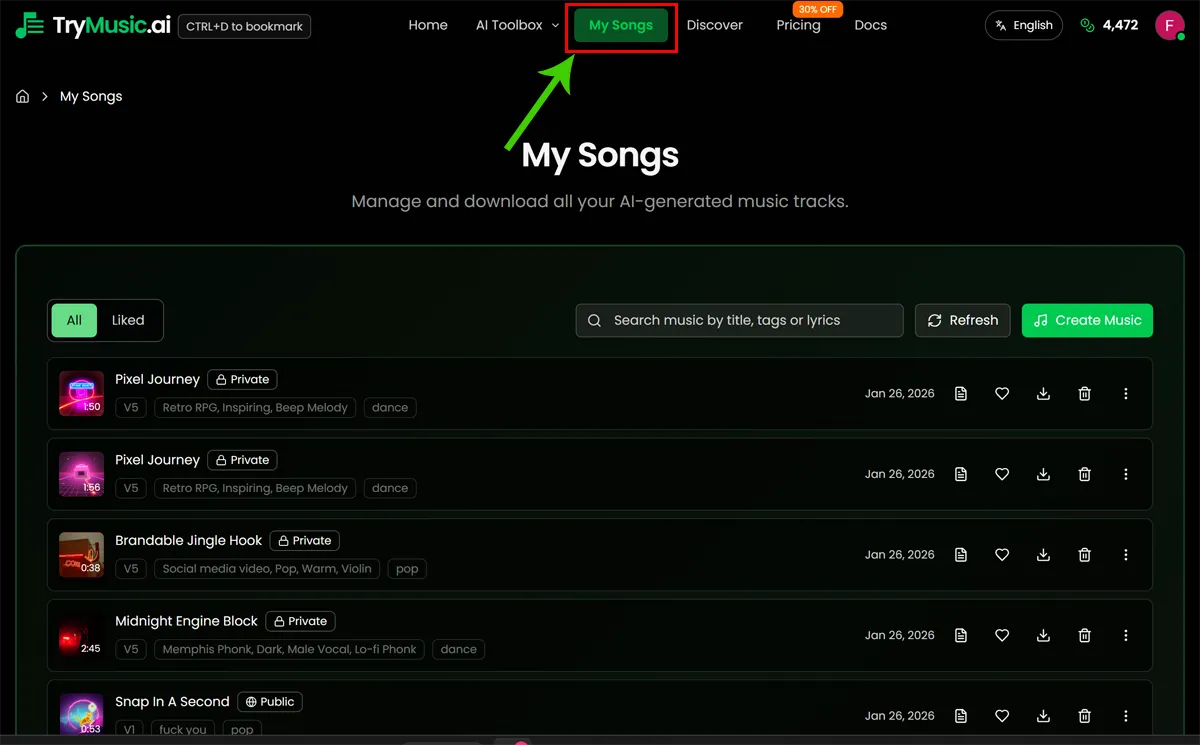
Step 2: Common Track Management Features
Each track in your library comes with a set of quick-access buttons for common operations:
Basic Actions
- View Lyrics (📄): Click the document icon to view and edit your track's lyrics
- Like/Unlike (❤️): Add tracks to your favorites by clicking the heart icon. Liked songs are permanently stored
- Download (⬇️): Download your track in MP3 or WAV format
- Delete (🗑️): Remove tracks you no longer need (this action cannot be undone)
Track Information
Each track displays:
- Title: The name of your generated song
- Cover Image: Visual representation of your track
- Model: The AI model used (V1, V2, V3, V4, or V5)
- Style/Tags: Musical style and genre tags
- Date Created: When the track was generated
- Public/Private Status: Visibility indicator (globe icon for public, lock icon for private)
Edit Track Metadata
Click the "View Lyrics" button to open the track details dialog where you can:
- Edit the track title
- View and edit lyrics
- Change the track's public/private status
- View detailed track information
Step 3: Advanced Operations Menu
For more advanced features, click the three dots menu (⋮) on the right side of each track to access additional operations:
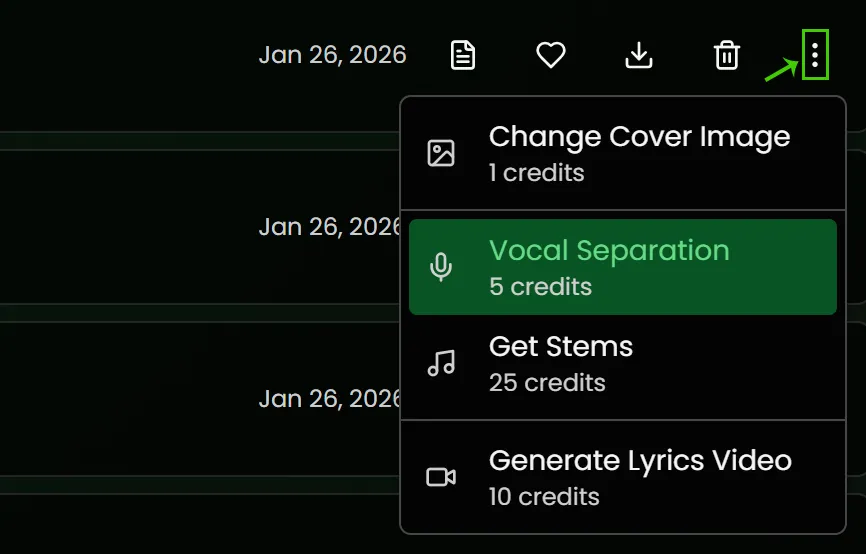
Available Operations
Generate Cover Image
Create AI-generated cover art for your track. Costs vary based on your subscription plan.
Vocal Separation
Extract vocals from your track, separating them from the instrumental. Costs 5 credits.
Get Stems
Separate your track into individual stems (drums, bass, melody, etc.). Costs 25 credits.
Generate Music Video
Create an AI-generated music video for your track. Costs vary based on your subscription plan.
Detailed Feature Guide
Downloading Your Music
When you click the download button, you'll see options to:
- Download MP3: High-quality 320kbps format (3-5MB file size)
- Download WAV: Studio-quality lossless format (30-50MB file size)
- Download Cover Image: Get the track's cover art as a separate image file
Subscribers have access to commercial licensing, allowing you to monetize your tracks on platforms like YouTube, TikTok, and Spotify.
Organizing Your Library
Filtering Options
Use the filter tabs at the top of the page:
- All: View all your tracks
- Liked: Show only your favorited tracks
Search Functionality
Use the search bar to quickly find tracks by:
- Track title
- Style or genre tags
- Model used
Pagination
If you have many tracks, use the pagination controls at the bottom to navigate through pages of results.
Track Visibility
Each track can be set to Public or Private:
- Public (🌐): Your track is visible to others and can be shared
- Private (🔒): Only you can see this track
Making a track private requires a subscription. Free users can only create public tracks.
Editing Track Information
- Click the "View Lyrics" button on any track
- In the dialog that opens, you can:
- Edit the track title
- View and modify lyrics
- Change public/private status
- Click "Save" to apply your changes
Advanced Operations
Vocal Separation
Separate the vocals from the instrumental parts of your track:
- Click the three dots menu (⋮) on your track
- Select "Vocal Separation"
- Confirm the operation (costs 5 credits)
- Wait for processing to complete
- Download the separated vocal and instrumental files
Stem Separation
Get individual stems (drums, bass, melody, etc.) from your track:
- Click the three dots menu (⋮) on your track
- Select "Get Stems" (Full Stem Separation)
- Confirm the operation (costs 25 credits)
- Wait for processing to complete
- Download each stem separately
Cover Image Generation
Create custom cover art for your tracks:
- Click the three dots menu (⋮) on your track
- Select "Generate Cover Image"
- The AI will create cover art based on your track's style
- The new cover will automatically replace the existing one
Music Video Generation
Generate an AI music video for your track:
- Click the three dots menu (⋮) on your track
- Select "Generate Music Video"
- Follow the prompts to customize your video
- Wait for generation to complete
- Download your music video
Tips & Best Practices
Organize with Favorites
Use the like feature to mark your best tracks. Liked songs are permanently stored and easy to find.
Use Search Effectively
If you have many tracks, use the search function to quickly locate specific songs by title or style.
Download in Multiple Formats
Download both MP3 (for sharing) and WAV (for professional use) formats to have maximum flexibility.
Explore Advanced Features
Try vocal separation and stem extraction to remix and reuse your tracks in creative ways.
Troubleshooting
Track Not Appearing
If a track doesn't appear in your library:
- Check if you're logged into the correct account
- Verify the track generation completed successfully
- Try refreshing the page
Download Issues
If downloads fail:
- Check your internet connection
- Ensure you have sufficient credits (for advanced operations)
- Try downloading in a different format
Operation Errors
If an operation (vocal separation, stems, etc.) fails:
- Verify you have enough credits
- Check your subscription status
- Contact support if the issue persists
Next Steps
Now that you know how to manage your music library, explore these related guides:
Start Creating Now!